
You built the image in Midjourney, animated it in Runway, cloned a voice in ElevenLabs, mixed audio in CapCut, and spent forty-five minutes doing it. Now the client wants the character swapped. You get to do it all over again. There is a better way called Flows.
If you are a solo AI entrepreneur or indie hacker running a one-person creative operation, your biggest enemy is not skill, it is friction. Every tool handoff is a hidden tax on your time. Every re-upload, every re-prompt, every tab switch chips away at the margin between a profitable micro-agency and a very expensive hobby. ElevenLabs just shipped a feature called Flows, and for solo builders specifically, it is the most operationally significant AI release of the year. Here is everything you need to know.
What ElevenLabs Flows Actually Is
ElevenLabs already had Studio, a timeline-based audio editor where you lay things out left to right, trim, layer, and mix. It is linear by design and works beautifully for audio production. But AI creative work is not linear. You start with a concept, branch into three visual directions, decide one of them works, swap a character, change the motion prompt, regenerate the whole thing, and then add a sound effect at the end. That process does not fit on a timeline.
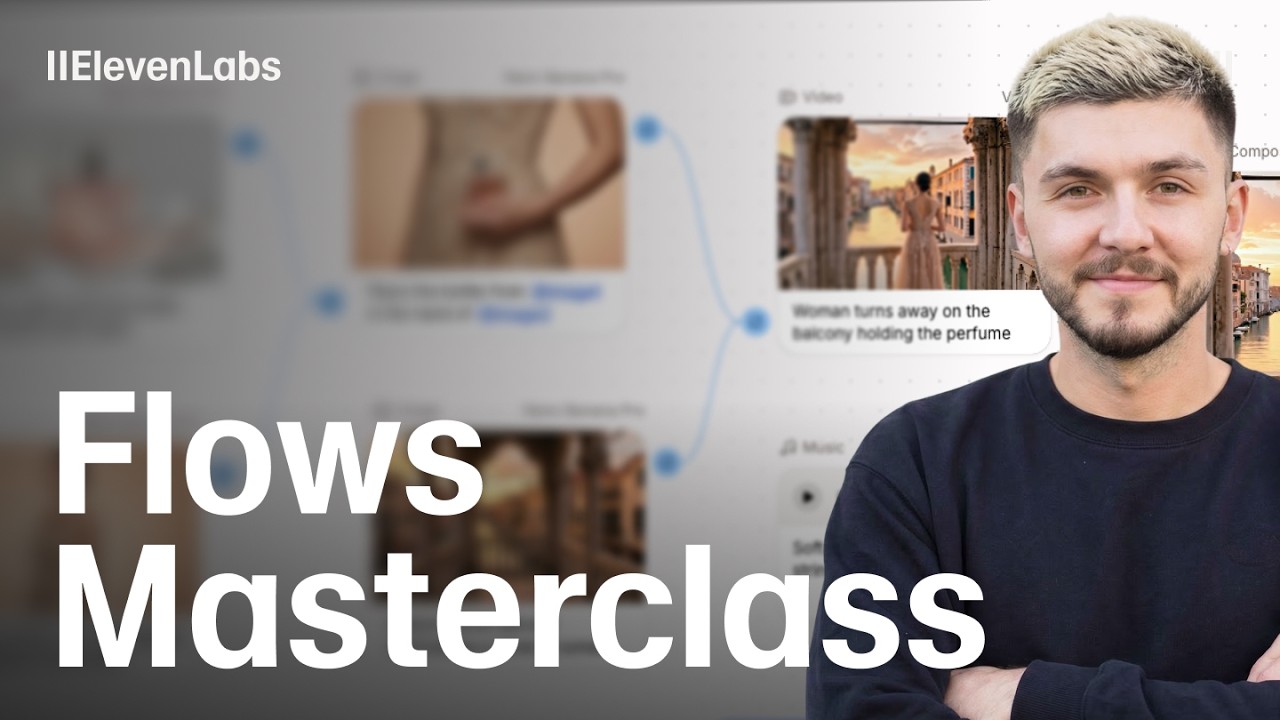
Flows is a node-based visual canvas. Think of it the way a developer thinks of a directed acyclic graph: each node is a discrete operation, each connector is a data dependency, and the whole thing runs as a pipeline when you hit execute. Except instead of writing code, you are dragging image generation nodes, video generation nodes, audio nodes, and composition nodes onto a canvas and wiring them together visually.
The canvas gives you access to the leading AI image models, the leading AI video models, and ElevenLabs' own best-in-class audio models, all inside a single browser tab. No API keys to manage. No Zapier glue. No Python scripts holding the pipeline together with duct tape.

The USP That Actually Matters for Solo Builders
There are a lot of features in Flows worth being excited about. But for a solo AI entrepreneur, one capability stands above the rest: cascade regeneration from a single upstream change.
Here is the scenario. You build a complete ad pipeline on the canvas. Image generation feeds into an image edit node where you swap in a client's face using a reference photo. That edited image feeds into a video generation node with a motion prompt. That video feeds into a composition node where sound effects are layered on top. The whole thing is wired up and finalized.
Now the client wants a different camera angle in the original shot. In the old multi-tool workflow, you go back to your image tool, regenerate from scratch, download, re-upload to the video tool, re-input the reference, regenerate the video, download, re-upload to your audio tool, re-sync the sound. You have just spent thirty minutes on a one-word prompt change.
In Flows, you change the prompt text in the upstream image node, right-click that node, and select run from here. Flows cascades the regeneration through every downstream node automatically. Every reference retags itself. Every connected node re-executes with the updated inputs. The entire pipeline regenerates in the time it takes to make a coffee.
That is not a convenience feature. For a solo operator running three or four client campaigns simultaneously, that is the difference between being able to offer unlimited revisions as a product differentiator versus dreading every revision request that comes in.
How to Build Your First Flow: Step by Step
Getting started takes less than five minutes. Here is the exact sequence used in the official ElevenLabs tutorial.
- Open ElevenLabs and click Flows in the left toolbar, then click New Flow.
- Right-click on the blank canvas and select Image Generation Node. Choose your model, aspect ratio, and resolution, then type your prompt and click Run.
- While the image generates, right-click again and add a Video Generation Node. Drag a connector from the image node output to the start frame input on the video node. Type your motion prompt and click Run.
- To test multiple models in parallel, add a Text Node with your prompt text and drag connectors from it to two separate image generation nodes, each set to a different model. Run them simultaneously and compare the outputs side by side.
- To insert a real person using a reference photo, upload your reference image as a media node, create an Edit Image Node, connect both the generated image and the reference photo as inputs, and use the at-sign syntax in your prompt to tag the specific reference.
- Once your visual is finalized, drag a connector from the video output and select Mix With Audio to create a Composition Node. Add a Sound Effect Node, describe the sound you need, and connect it to the audio input of the composition.
- Right-click anywhere downstream and select Run From Here to regenerate the full pipeline at any point.

Every Node Type and What It Does
| Node Type | What It Generates | Key Setting | Solo Builder Use Case |
|---|---|---|---|
| Image Generation | Static image from text prompt | Model selector, resolution up to 2K | Product visuals, ad creative, character generation |
| Video Generation | Animated clip from image or prompt | Model selector, aspect ratio, motion prompt | Social ads, product demos, short-form content |
| Edit Image | Modified version of existing image | Reference tagging via at-sign | Character swaps, style transfers, client face inserts |
| Text Node | Shared prompt string | Plain text input | One prompt driving multiple parallel model comparisons |
| Sound Effect | AI-generated audio from description | Text description of sound | Ad soundscapes, UI sounds, background ambience |
| Composition | Final mixed video plus audio output | Audio and video inputs | Finished ad-ready asset ready for export |
| Upload Media | User-supplied reference file | Drag and drop or file picker | Client photos, brand assets, existing footage |
The Model Comparison Superpower
One underrated capability inside Flows is parallel model comparison. Because you can feed a single Text Node into multiple image generation nodes simultaneously, each set to a different model, you can run Flux, Ideogram, and Recraft side by side on the same prompt without repeating a single step. The outputs sit on the canvas next to each other for direct visual comparison.
For a solo builder pitching creative work to clients, this is a significant workflow upgrade. Instead of running three separate generation sessions, downloading, organizing, and presenting the results manually, you run the canvas once and screenshot the comparison directly. It saves time and makes you look like you have a whole research process behind your recommendations.
The same logic applies to video models. In the tutorial, Kling 2.6 and Wan Video 3.1 are run in parallel on the same edited image, generating two motion interpretations of the same scene. You pick the winner and everything downstream already knows which input to use.
Generation History and Non-Destructive Editing
Every node in Flows keeps a history of all previous generations. At any point you can cycle backwards through past outputs using the dropdown arrow at the top of the node. This means you are never locked into a single direction. If the fifth generation of an image was actually better than the tenth, you can go back, select it, and rewire the downstream nodes to use it instead.
This is non-destructive editing applied to AI generation, and it is a philosophy shift worth paying attention to. Traditional creative software has had non-destructive editing for decades. Lightroom does not delete your original when you apply a preset. Photoshop keeps adjustment layers separate from pixel layers. Flows brings that same principle to AI pipelines: generate freely, compare everything, commit to nothing until you are ready.
For indie hackers who are iterating quickly on client work or testing creative directions for their own products, this removes a significant psychological barrier. You can experiment aggressively because reverting costs nothing.
Sharing Flows and Automating Your Creative Pipeline
Once you have built a flow that produces results you are happy with, you can save it, duplicate it, and share it. The sharing capability is where Flows starts to look less like a creative tool and more like a business asset.
Imagine you run an AI ad production service. You build a flow for a specific ad format: a product image feeding into a character insertion, feeding into a motion clip, feeding into a composition with a voiceover. That flow becomes your production template. You duplicate it for each new client, swap in their brand assets and product photos, change the top-level prompt, and hit run. The entire pipeline executes automatically.
This is the kind of systematized creative production that used to require a team, a project manager, and a stack of SaaS subscriptions. Flows compresses it into a single canvas that one person can operate.
Where Flows Fits in the Solo Builder Stack
To be clear about what Flows is and is not: it is a generative production tool, not a social media scheduler, not an analytics dashboard, and not a client-facing deliverable platform. It sits in the middle of your stack between ideation and final export. You still need to distribute the assets you create, present them to clients through your own preferred tools, and handle the business layer separately.
But for the actual creative production layer, the part where you are turning a brief into a finished visual asset, Flows is the most coherent single-tool solution currently available for solo operators working across image, video, and audio simultaneously. The alternatives are either subscription stacks stitched together manually or ComfyUI workflows that require Python knowledge to maintain.
Flows requires neither. It is drag, drop, prompt, run. That accessibility at professional output quality is the actual value proposition for the indie hacker audience.
Frequently Asked Questions
Do I need an existing ElevenLabs subscription to use Flows?
Flows is available inside ElevenLabs and accessible from the left toolbar in your account. Check the current ElevenLabs pricing page for plan-specific access details, as feature availability may vary by tier.
Which image and video models are available inside Flows?
The tutorial demonstrates Flux models including Nano Banana 2, Ideogram, Recraft, Kling 2.6, and Wan Video 3.1. The model library inside Flows reflects ElevenLabs' ongoing partnerships and may expand over time.
Can I use my own reference images and photos inside Flows?
Yes. You can upload reference images directly to the canvas using the Upload Media button or by dragging and dropping from your file system. These can then be connected to Edit Image nodes and tagged using the at-sign syntax inside prompts.
Does changing one node force me to redo the entire canvas?
No. That is the core advantage of Flows. You right-click any node and select Run From Here to regenerate only that node and everything downstream from it. Upstream nodes that did not change are unaffected.
Can I share my flows with collaborators or clients?
Yes. Flows can be saved and shared as templates. This makes it practical for small teams or for solo builders who want to hand off a repeatable production workflow to a contractor or collaborator.
Is Flows suitable for client work or just personal projects?
Flows is well-suited for client-facing creative production. The ability to swap reference images, regenerate full pipelines from upstream changes, and compare multiple model outputs in one session maps directly to the revision-heavy workflow of agency and freelance production.
What is the difference between Flows and ElevenLabs Studio?
Studio is a linear timeline editor designed for audio production: trimming, layering, and mixing. Flows is a nonlinear node-based canvas designed for multi-modal AI generation across image, video, and audio. They serve different stages of the creative process and are not direct replacements for each other.

